Every tool, and what it is allowed to change

Over 20 screens in six areas. Each states beside its heading whether it only reads or can change something, and the read-only label is verified against the code by a build test.

1 · screen

Site health

One view across every audit, for the question an administrator asks first: does anything need attention right now?

Site health

Reads only

Runs every audit in the app in one scan and reports what each found, so you can tell whether the site needs attention without opening a dozen screens.

What you get

  • Every audit’s verdict in one place: healthy, needs attention or critical.
  • Each count compared with its own previous scan, so you see whether things are getting better or worse.
  • A way into the screen that holds the detail behind every finding.

Safeguards

  • An audit that could not answer counts as needing a look, never as clean.
  • Findings from different audits are never added up or compared with each other, because they are different units.
7 · screens

Users & access

Who can reach what, and what happens to the objects of someone who leaves, including the Jira Service Management customers and organizations behind a portal.

Reassign ownership

Changes things

Moves the filters and dashboards owned by one person to another. The standard flow when someone leaves.

What you get

  • A preview of everything the person owns, with each object’s query, shares, favourites and last use.
  • Every object individually selectable, all selected by default, so a filter nobody has used in two years can be left to be deleted instead.
  • Any active user as the new owner; they do not need to be an administrator.

Safeguards

  • Changing the selection clears the confirmation, because it was given for a different set of objects.
  • Objects the person no longer owns at execution time are reported as skipped, never silently dropped.
  • The screen states that private dashboards nobody shared with you are invisible to Jira’s search. Up to 500 objects per run.

Revoke access

Changes things

Removes a user from groups: the reversible alternative to deleting an account, which is an organization-level action affecting every Atlassian product.

What you get

  • The user’s group memberships, with what each one grants.
  • Removal from the groups you select. The account and its history stay intact.

Safeguards

  • You cannot remove your own account from the Jira administrators group; that entry is skipped and reported.
  • Groups synced from your identity provider (SCIM) are reported per group as rejected, with the reason, so you know to remove the person there.
  • Up to 200 group removals per run.

Permission audit

Reads only

Every grant in every permission scheme, classified by who holds it.

What you get

  • Four findings: granted to anonymous visitors, to every licensed user on a destructive permission, to every licensed user on a harmless one, and to one named person.
  • Ordered worst first, then scheme by scheme, so each scheme can be dealt with in one pass down the page.
  • A profile of every scheme with its grant count and mix of recipients, with Jira’s default scheme marked.

Safeguards

  • Grants to groups and project roles are Jira’s intended mechanism and are not flagged, which keeps the findings worth reading.
  • A permission key the app does not recognise is treated as ordinary, never as harmless.
  • The audit only reports. Changing a grant stays a deliberate act in Jira’s own permission scheme screen.

Duplicate accounts

Reads only

Accounts that share an exact display name, each shown with the evidence that tells them apart.

What you get

  • Per candidate: active or deactivated, group memberships, and issues assigned, reported or created.
  • Enough evidence to decide which account is the live one before merging them.

Safeguards

  • Exact match only, never fuzzy: two similar names are two people until someone establishes otherwise.
  • E-mail addresses are not used, because reading them regardless of profile settings requires an elevated app identity, which this app never uses.
  • Merging happens in admin.atlassian.com. The report names the candidates; it does not merge.

Jira Service Management customers

Changes things

Every customer across all service desks at once, where Jira’s own directory shows one desk at a time.

What you get

  • Customers who belong to several projects, and customers who exist twice under the same name.
  • Filtering by e-mail domain, which in practice means by company.
  • An optional scan of which organizations each customer is in, and removal of customers from one service desk.

Safeguards

  • Before removal, the dialog lists the other desks each person keeps, so you see who would be left with none.
  • E-mail addresses are read live and never stored.
  • No account is deleted. No Jira app can do that; it is an organization-level action.

Organizations

Changes things

Every Jira Service Management organization with the service desks it is attached to, the fact the customer directory never shows.

What you get

  • Organizations on no service desk, which grant nobody anything, and on several, which is why portals can see each other’s requests.
  • Customer counts with filters for empty organizations, deactivated members, and customers on no desk.
  • Each organization opened in detail: detach desks, add or remove members, create new ones and delete in bulk.

Safeguards

  • An organization that could not be read is shown as unreadable, never as empty.
  • A count that was only partly read is shown as a floor (≥ N), not as a total.
  • The delete dialog names how many customers lose access, per organization.

Create customers

Changes things

Paste a list and create the customers in it, each placed in the organization its row names.

What you get

  • Comma or semicolon separated, with the header row recognised and optional columns for name and organization.
  • A preview of every row with its line number from your file, and bad rows flagged rather than dropped.
  • Everyone optionally added to a service desk, with missing organizations created on request.

Safeguards

  • Organization names must match exactly. A name that several organizations share places nobody, rather than guessing.
  • A paste that would create more than 25 organizations is refused; it usually means a column is in the wrong place.
  • The result separates created, already a customer, and address rejected.

5 · screens

Filters & dashboards

What piles up over the years, who owns it, who still uses it, and what breaks if it goes.

Bulk filters

Changes things

Every filter on the site in one table, with the facts a deletion decision rests on.

What you get

  • Owner, JQL, favourites, last use, the boards standing on it, and exactly who it is shared with.
  • Make private, delete, or change sharing: add a share, remove one, replace all, or strip public sharing only.
  • A before → after line for every affected filter in the confirmation.

Safeguards

  • Jira lets administrators change a filter’s sharing only by owning it, so the app transfers it, updates it and transfers it straight back. Filters whose sharing would not change are never touched.
  • If a hand-back fails, the filter is listed afterwards with a repair button.
  • Deleting names every filter with its shares and favourites. Filters have no trash in Jira.

Bulk dashboards

Changes things

The same for dashboards: make private, reassign or delete them in bulk.

What you get

  • A column showing which dashboards Jira allows you to delete. Jira only lets a dashboard’s owner delete it, administrators included.
  • Dashboards you do not own lock when deleting, and can still be made private or reassigned to you first.

Safeguards

  • Deleting a dashboard leaves the filters it displayed untouched.
  • The screen states that private dashboards nobody shared with you are not listed.

Clone dashboards

Changes things

Copies up to five dashboards with their gadgets, gadget configuration and, optionally, the filters those gadgets read.

What you get

  • A naming pattern with {name} for the original name, and a live example as you type.
  • Find-and-replace substitutions that rewrite filter values on the way, such as Infrastructure → Network, optionally in the names too.
  • Every rewritten query shown before and after, in full.

Safeguards

  • It only ever creates. Nothing existing is modified.
  • Sharing is not copied unless you opt in, so the copy stays private until you share it.
  • Warnings when a substitution matched nothing or feeds another; an invalid rewritten query blocks the run.

Orphaned objects

Changes things

Filters and dashboards whose owner’s account is deactivated or gone, moved to an active owner.

What you get

  • One scan across filters and dashboards. Objects with no owner at all count as orphaned too.
  • Reassignment of everything found to one active owner.

Safeguards

  • Every object is re-read before it is touched and moved only if its owner really is deactivated.
  • A missing “active” flag is never read as deactivated.
  • Up to 100 objects per run, because each is re-verified individually.

Duplicate filters

Changes things

Filters that save the same query under different names, grouped so one can be kept and the copies deleted.

What you get

  • Queries compared after safe normalisation of whitespace, case and redundant quotes.
  • A suggested filter to keep: the most broadly shared, then the most favourited, the most recently used, the oldest.
  • An option to share the kept filter with every logged-in user.

Safeguards

  • A different sort order, term order or quoted text keeps filters apart, because the comparison decides what gets deleted.
  • Every copy stays locked until boards, dashboard gadgets and e-mail subscriptions have been checked. An answer that could not be established keeps it locked.
  • Everything is re-checked at run time. Sharing runs first, and if it fails nothing is deleted.

1 · screen

Issues

One JQL query, one operation, applied through Jira’s own asynchronous bulk API.

Bulk operations

Changes things

Add a label, set a field, transition, move or delete the issues a JQL query matches, with a preview of exactly which issues will be affected.

What you get

  • Five operations: add label, set assignee, priority, fix version or component, transition, move to another project, delete.
  • A preview with the match count and a sample of issue keys, then live progress and the outcome for every issue with Jira’s reason.
  • For setting a field, every field Jira reports as editable, marked as supported, not yet supported, or refused by Jira with the reason.

Safeguards

  • The run acts on the issue set the preview pinned: single use, valid for ten minutes. A query like updated < startOfDay() cannot shift underneath it.
  • Delete and move refuse more than 1,000 matches instead of acting on an arbitrary part. Reversible operations work through larger sets in batches of 1,000.
  • Fields that exist only inside one project narrow the query to that project in parentheses, so an OR cannot escape it. The preview uses the same query as the run.

2 · screens

Custom fields

Jira Cloud allows 700 custom fields and slows down well before that. Both screens reduce the count without losing data.

Custom field usage

Changes things

Every custom field with the four facts that decide its fate: how many issues hold a value, its screens, its contexts and its last use.

What you get

  • A verdict per field: empty and unused, empty but still configured, in use, or unknown.
  • A row menu to open the field’s configuration, to search the issues holding a value with the same query the count uses, or to move it to the trash.
  • Fields that are empty and unused moved to Jira’s trash in bulk, restorable for 60 days.

Safeguards

  • A field whose usage cannot be counted is shown as unknown and never offered for the trash.
  • Usage is counted again on the server before each field is moved; one that gained a value is skipped.
  • The app never deletes a field permanently. Up to 50 fields per run.

Duplicate fields

Changes things

Merges custom fields with the same name and type: issue values are copied to the field you keep, and the source is emptied.

What you get

  • Groups of duplicate fields, such as two teams’ “Customer” fields.
  • Select, radio and checkbox options translated by label, with the full mapping plan shown before you confirm.
  • Processing in rounds of 25 issues with progress shown. Re-running continues where it stopped.

Safeguards

  • Options that are ambiguous or have no counterpart are reported, and their issues skipped rather than guessed. Cascading select is excluded.
  • The source field is emptied, never deleted. Screens and contexts are not changed.
  • A field whose option list cannot be read in full blocks the merge.

7 · screens

Configuration, log & help

What remains when projects and workflows are retired, who among your administrators may use the app, and the record of everything it has done.

Duplicate schemes

Changes things

Permission, notification and issue type schemes compared by what they grant, not by their name, and every workflow with its status.

What you get

  • Groups identical in content, similar pairs with the exact lines that separate them, and schemes no project uses.
  • Consolidation of an identical group: projects move onto the scheme you keep, then the copies are deleted.
  • Every workflow marked active, named by a scheme, unused and deletable, or unknown.

Safeguards

  • The group is re-checked on the server, and a copy is deleted only once all its projects have moved.
  • Team-managed schemes are refused, and so is a run moving more than 60 projects.
  • If not every project could be read, consolidation and deletion are blocked, because an unread project would make a scheme look unused.

Screens

Changes things

Every screen and what still points at it, through screen schemes and workflow transitions.

What you get

  • The screens nothing points at, in their own group.
  • Deletion of those screens, up to 50 per run.

Safeguards

  • Jira remains the final authority: a screen used by an unpublished workflow draft is refused and reported, and the rest of the run still goes.
  • If the workflow check could not run, the screen says so prominently, because the result then means much less.

Issue type usage

Reads only

Which issue types exist, how many issues use each, and how many schemes still offer them.

What you get

  • The level of each type, sub-task, standard or epic, because an unused type means something different for each.
  • Candidates for removal, which you then remove in Jira’s own screens.

Safeguards

  • A warning when scheme membership could not be read in full, because an undercount looks exactly like a real zero.
  • A level Jira does not report is shown as unknown, never assumed.

Archive & trash

Changes things

Everything archived or waiting for permanent deletion, with the deadline Jira shows nowhere.

What you get

  • Archived and trashed projects, trashed custom fields, and archived or deleted dashboards, each with its countdown.
  • Objects you have reviewed can be marked as decided, so Site health stops reporting them as critical.

Safeguards

  • A decision never stops or delays a deletion, and the object stays listed and counted.
  • The mark lapses in the final days, and when an object is restored and trashed again.
  • It writes nothing to Jira. Only the decision is stored, which is why the screen is labelled as changing things.

App access

Changes things

Decides which of your Jira administrators may use the app, and in which role.

What you get

  • Three roles: auditor (read only), operator (read and change), and owner (also manages this policy).
  • A default role for every administrator not named. Access is unrestricted until you change it.

Safeguards

  • Enforced on the server for every request. It can only narrow what Jira already permits, never widen it.
  • You cannot remove your own ownership, and a restricted policy always keeps at least one owner.
  • Every policy change is logged, with the before and after for each person.

Jobs & audit

Reads only

Every change the app has made: who ran it, what was requested, and how it went for each object.

What you get

  • Job type, the account IDs of actor and target, totals, and start and end times.
  • The outcome for every object, with a reason code wherever something was skipped.
  • The 50 most recent runs.

Safeguards

  • No issue content, secrets or tokens. People appear as account IDs.
  • Every change also appears in Jira’s own audit log and issue history, under the administrator who ran it.

Help

Reads only

What the app can do, what it refuses to do, its current limits, and what every result code means.

What you get

  • A catalogue of every screen, filterable by whether it reads or can change something.
  • The current limits and the meaning of each reason code in the result panels.

Safeguards

  • Limits are read from the running code and codes from the same translations the results use, so the help cannot drift from the app.

A closer look

What Jira does not show you

Schemes that differ only in name

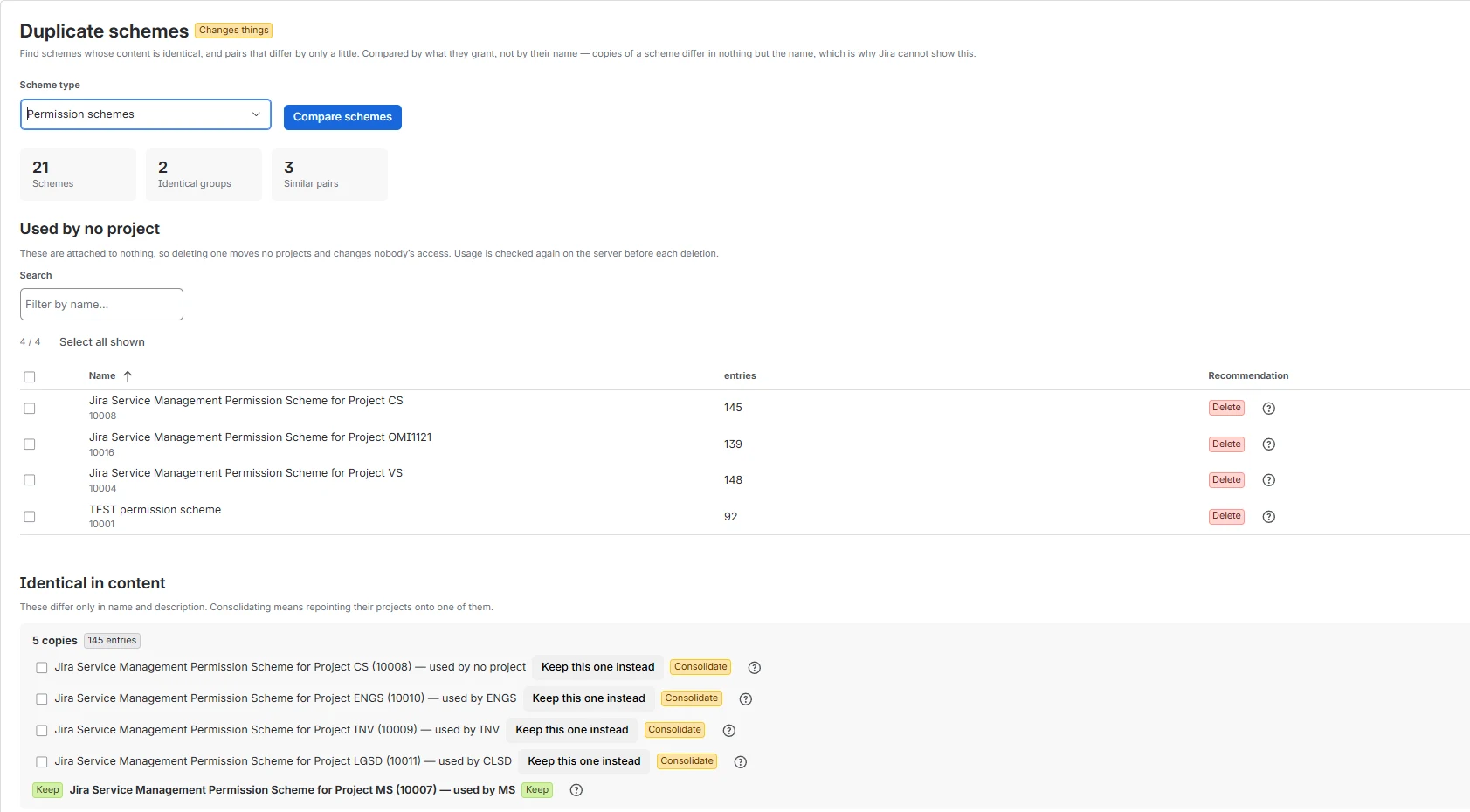
Copies of a permission scheme are invisible in Jira, because they are identical except for their name. Admin Ops compares what they grant.

  • Unused schemes first: nobody’s access changes.
  • When consolidating, projects move onto the survivor first; only then are the copies deleted.
Duplicate schemes: 21 schemes, 2 identical groups, 3 similar pairs, a list of unused schemes and a group of five identical copies.

Custom fields nobody fills in

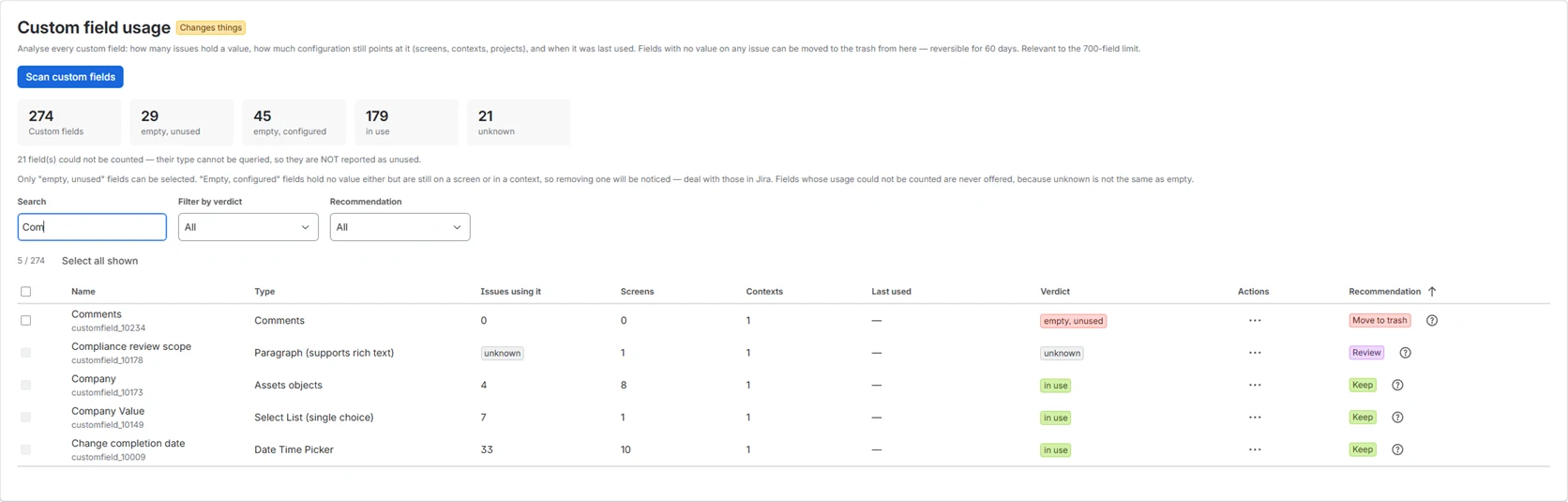
Every field gets an issue count, its screens and contexts, and a verdict. Only “empty, unused” can be selected.

  • Fields that cannot be counted show as “unknown” and are never offered for deletion.
  • Deletion goes to Jira’s trash, restorable for 60 days.
Custom field usage: 274 fields, 29 empty and unused, 45 empty but configured, 179 in use, 21 unknown.

Recommendations that show their reasons

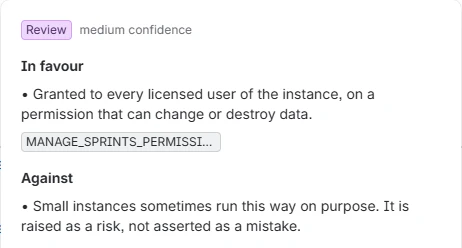
Every audit table has a recommendation column: trash, delete, consolidate, reassign, decide, review or keep. One click shows the evidence for it, the evidence against it, and the app’s confidence.

  • A missing signal is reported as missing, never counted as zero.
  • Recommendations select nothing and unlock nothing.
Recommendation Review with medium confidence: in favour, a destructive permission granted to every licensed user; against, small instances sometimes run this way on purpose.

A dashboard for the next team

When cloning, values in the queries can be replaced. The preview shows every query before and after, and a substitution that matched nothing is named.

Clone preview: the filter ENGS – All Open becomes CX – All Open (copy), with the query before and after.

Limits per run

Every limit is reported when it is reached, never applied silently. Delete and move refuse a larger match instead of acting on part of it.

OperationMaximum
Issues per bulk operation1,000
Objects per ownership reassignment500
Group removals200
Filters or dashboards per bulk action100
Orphaned objects per reassignment100
Project reassignments per consolidation60
Schemes deleted or consolidated50
Screens deleted50
Custom fields moved to trash50
Substitutions per clone run10
Dashboards per clone run5
Runs kept in the audit log50

Clear boundaries

What the app deliberately does not do

  • No deleting or merging user accountsAccounts belong to the Atlassian organization, not the Jira site, and no API exists for it. That happens in admin.atlassian.com.
  • No editing of permission grantsThe audit reports and the app consolidates identical schemes. Who may do what stays a deliberate change in Jira.
  • No acting on an arbitrary subsetWhen a delete or move query matches more than the limit, the run is refused.
  • No treating “unknown” as “empty”What the app cannot establish for certain is never recommended for removal.
  • No pretend four-eyes approvalIf your change process needs a second person, that happens outside the app. The preview and the log support it.
  • No background changesNothing that touches Jira runs unless an administrator presses a button.

Start by seeing what your instance is carrying around

The read-only audits work even without a licence. Nothing changes until you decide it should.